> For the complete documentation index, see [llms.txt](https://docs.bestway.com.ua/llms.txt). Markdown versions of documentation pages are available by appending `.md` to page URLs; this page is available as [Markdown](https://docs.bestway.com.ua/textures-and-materials/physically-based-rendering/texture-conversion-in-gem-rts.md).
# Texture Conversion in Gem RTS
## **Introduction**
Texture conversion is necessary for transforming texture sets created for Phong materials into PBR[^1] material components. In the Gem RTS engine, the conversion process can be performed automatically using material schemes created in the Scheme Editor.
### **Differences between texture components for Phong and PBR materials**
**Phong material components**
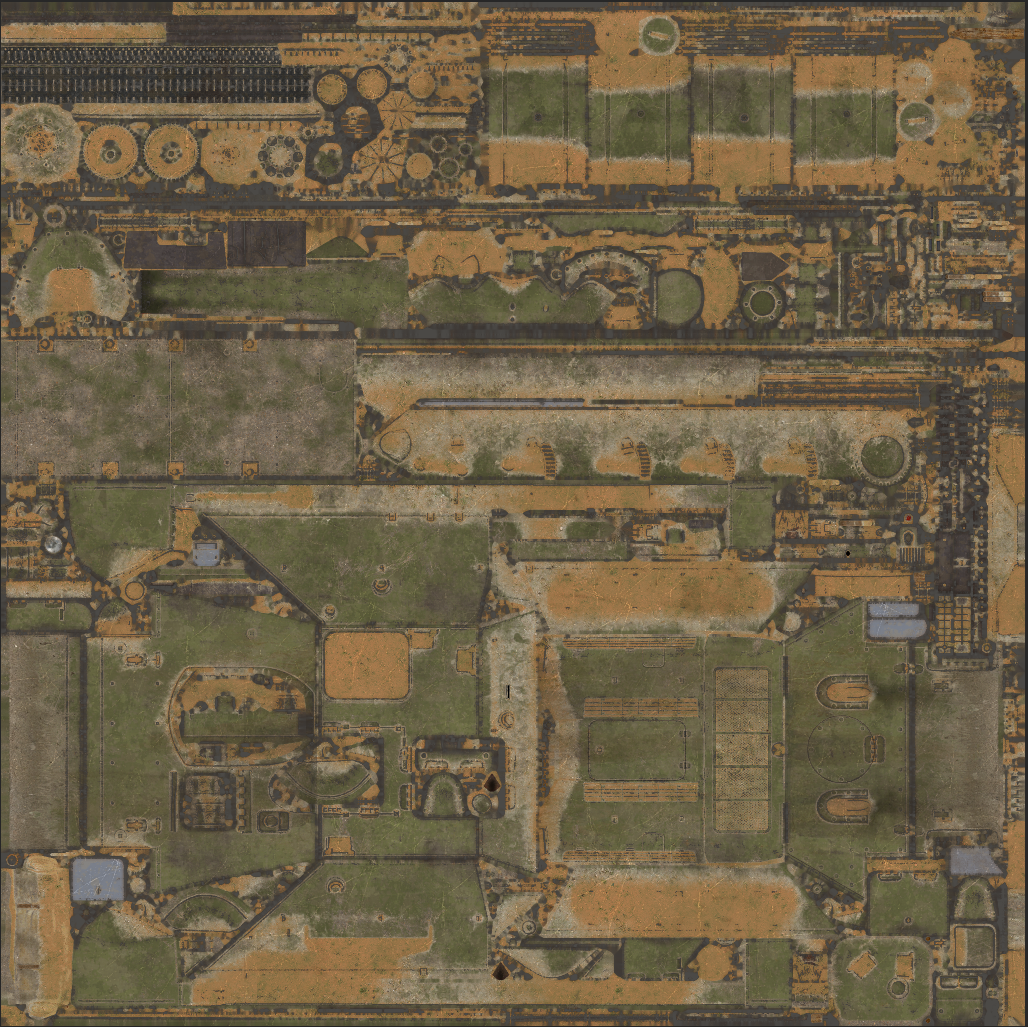
* The `lightmap` is baked into the `diffuse` texture map, located in a separate upper layer of the original `.tif` file and overlaid on the color map using the Multiply Blend mode.
* `Specular` texture map is used to define the shininess and reflectivity of surfaces..
Diffuse Texture (with baked lightmap) for Phong Material
**PBR material components:**
* The `diffuse` texture retains only the material color, while the `lightmap` is transferred to a separate `ambient occlusion` texture.
* `Metallic` and `roughness` texture maps are used to simulate how light interacts with surfaces in a realistic way
Diffuse Texture for PBR Material
Ambient Occlusion Texture for PBR Material
## **Texture conversion using the Scheme Editor**
Using conversion blocks in the Scheme Editor, you can create material schemes that automatically convert Phong texture sets into PBR materials during rendering.
The conversion works by transforming Phong texture sets (diffuse and specular) into PBR components diffuse, metallic, roughness, and ambient occlusion. The generation of PBR materials from Phong texture sets is based on the following assumptions:
Component
Conversion assumption
Metallic
A high specular value corresponds to the physical properties of metal. The lower threshold of specular brightness, beyond which metals begin, is taken into account.
Roughness
The higher the specular value, the smoother and more reflective the material. The minimum specular brightness value is taken into account to avoid very smooth surfaces. The original scheme's specular_power parameter indicates the glossiness of the surface.
Ambient Occlusion
Ambient occlusion is baked into the diffuse texture. Lower brightness values of the diffuse texture are taken as a sign of ambient occlusion.
'Specular to metallic and roughness' Conversion Block
'Diffuse to ambient occlusion' Conversion Block
### **Creating a Scheme for automatic conversion of Phong texture sets to PBR material**
1. Launch the Scheme Editor.
2. Open the Phong material scheme.
3. Add Conversion blocks to the scheme.
4. Connect the Phong `diffuse` and `specular` textures to the input pins of the Conversion blocks.
5. Combine all data from the output pins of the Conversion blocks into the Material block with the chosen lighting method.
6. Save the scheme to the `/gem2` folder.
Example of combining data into the 'Material: metallic + roughness' block
**Example of using conversion blocks in the bump material scheme from the gem2 folder**
Bump material scheme from the gem2 folder
{% hint style="info" %}
New PBR material schemes can be created using the Scheme Editor.
{% endhint %}
## **Methods of Converting Phong Textures to PBR**
### **Automatic Conversion**
* Using conversion blocks in the material scheme, Phong texture sets (diffuse, specular) are transformed into PBR material components (diffuse, ambient occlusion, metallic, roughness) automatically during rendering.
### **Partially-Automatic Conversion**
* Extract the lightmap from the diffuse texture and save it as a separate ambient occlusion texture using a graphic editor.
* The specular map is converted into metallic and roughness components using a conversion block in the material scheme.
### **Conversion using a graphic editor**
**Steps:**
1. Transfer the `lightmap` from the Phong `diffuse` texture to a separate `ambient occlusion` texture.
2. Convert the Phong `specular` texture to a `roughness` texture map. Usually, inverting the `specular` image and adjusting it with levels is sufficient.
3. Create a `metallic` map based on the Phong `specular` texture, leaving the brightest areas white (metallic = 1).
4. Assemble the PBR material scheme in the Scheme Editor using the PBR material texture maps.
## **Assigning the PBR material scheme to a model**
{% hint style="info" %}
When creating new models, it is recommended to assign materials from the `pbr/` folder.
{% endhint %}
{% hint style="info" %}
Material schemes from the `gem2/` folder support the automatic conversion of Phong texture sets to PBR material during rendering.
{% endhint %}
### **Re-exporting the model**
1. In 3D Max, assign the PBR material scheme to the model.
2. Export the model to the game using the [3D Max Plugin](/modeling/3ds-max-plugin.md).\
During export, the .material file in the model folder is automatically updated to include the material scheme and the paths to the textures for the material components.
### **Without Re-exporting the model**
1. Open the `.material` file from the model folder using a text editor.
2. Replace the material scheme name and paths to the corresponding PBR textures (textures must be in `.dds` format).
[^1]: [Physically Based Rendering](/textures-and-materials/physically-based-rendering.md)